Convert Excel to PDF Free Online – The Ultimate Guide to Axevora’s Excel to PDF Tool
Why a Free Online Excel‑to‑PDF Converter Matters Today
In a world where collaboration happens in the cloud, sharing a spreadsheet as a static, universally viewable document is essential. PDFs preserve formatting, protect formulas, and look the same on any device. Yet many professionals still wrestle with bulky desktop apps or costly subscriptions just to export a single file. Axevora’s Excel to PDF tool solves that friction—no download, no registration, and zero cost.
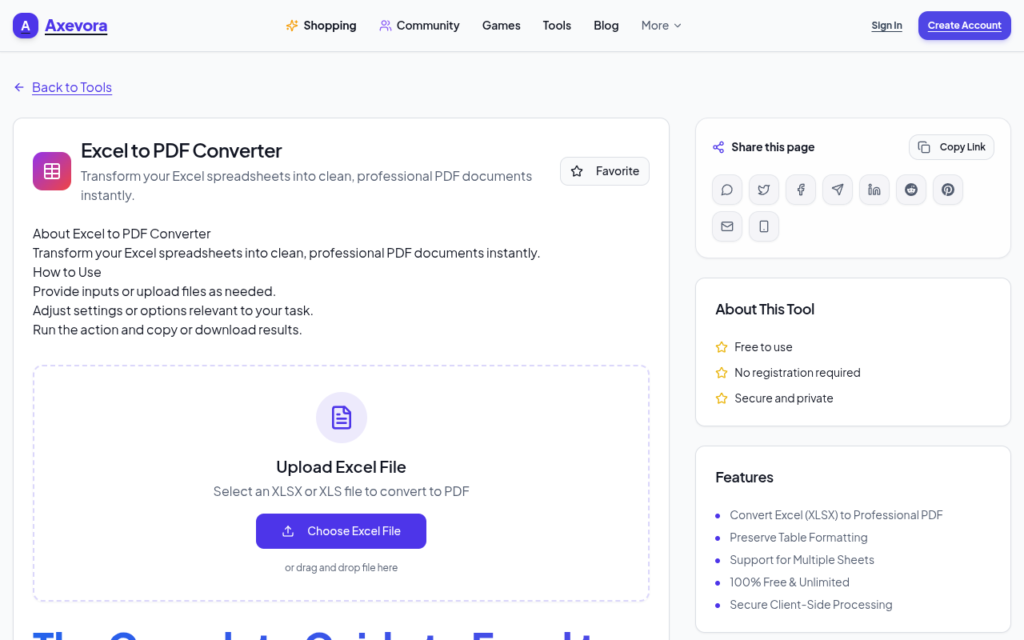
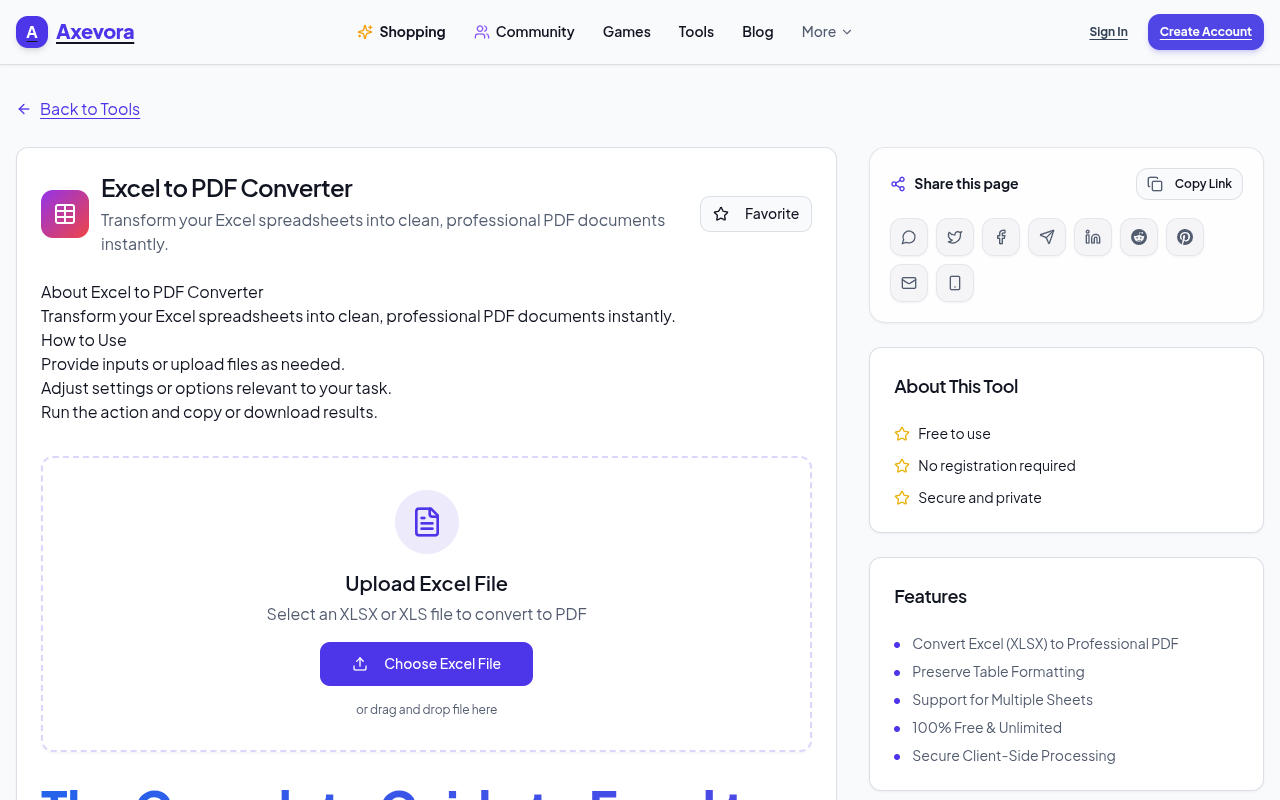
What the Excel to PDF Tool Actually Does
The tool lives entirely in your browser. You upload an .xlsx or .xls file, the server (or client‑side script) renders each sheet into a PDF page, and then offers a ready‑to‑download document. It handles multiple worksheets, basic cell formatting, and even simple charts, all while keeping your data private.
Who Can Benefit From This Converter?
- Students – Turn class assignments into clean PDFs for submission.
- Content creators – Share data‑driven infographics without exposing raw numbers.
- Developers & analysts – Quickly generate reports for stakeholders.
- Business professionals – Send invoices, budgets, or schedules that can’t be edited.
- Everyday users – Archive personal finance sheets, workout logs, or travel itineraries.
Real‑World Scenarios Where This Tool Saves Hours
- Weekly sales dashboards – Export a multi‑sheet sales report to PDF and attach it to an email in seconds.
- Academic project submissions – Convert a data‑heavy spreadsheet into a polished PDF that meets university formatting rules.
- Client‑facing proposals – Provide a read‑only version of cost breakdowns, ensuring the client can’t alter figures.
- Personal record keeping – Archive monthly budgets as PDFs for easy printing and future reference.
Step‑by‑Step: How to Convert Excel to PDF on Axevora
- Visit Axevora’s Excel to PDF page.
- Click the “Choose File” button and select your Excel workbook (max 10 MB).
- Optional: Tick the “Include hidden rows/columns” box if you need everything preserved.
- Press “Convert”**. The tool processes the file in the browser; progress is shown via a spinner.
- When conversion finishes, a download link appears. Click it to save the PDF to your device.
- Open the PDF to verify layout, then share or archive as needed.
Key Benefits Over Traditional Methods
- Browser‑based – No installation, works on Windows, macOS, Linux, or Chrome OS.
- Privacy‑first – Files are processed locally or deleted instantly after conversion.
- Completely free – No hidden fees, no trial limits.
- Instant – Small to medium files convert in under 10 seconds.
- Multi‑sheet support – All worksheets become separate PDF pages automatically.
Common Mistakes & How to Avoid Them
- Uploading a corrupted workbook – Verify the file opens in Excel before conversion.
- Expecting advanced PDF features – The tool focuses on faithful visual conversion, not on adding bookmarks or watermarks.
- Exceeding the size limit – Split large workbooks or compress images within Excel first.
- Relying on custom fonts – Use standard fonts (Arial, Calibri) to ensure they render correctly in the PDF.
Practical Example Workflow
Imagine you’re a freelance marketer preparing a monthly performance report:
- Create the report in Excel, using charts and conditional formatting.
- Before sending, open the file, hide any helper columns, and save.
- Use Axevora’s converter to turn the workbook into a single PDF.
- Attach the PDF to your client email—no risk of the client editing the numbers.
- Archive the PDF in your cloud storage for future reference.
This workflow eliminates the need for Adobe Acrobat or a paid Office 365 subscription, while guaranteeing the client sees exactly what you intended.
Frequently Asked Questions
Is my data safe during conversion?
Yes. The tool processes files locally in your browser whenever possible, and any server‑side handling deletes the file immediately after conversion.
Can I convert password‑protected Excel files?
Currently, the tool does not support password‑protected workbooks. Remove the password in Excel first, then upload.
What happens to formulas and macros?
Formulas are rendered as their calculated values; macros are not preserved in the PDF, which is intentional for security.
Is there a limit on the number of pages?
There’s no strict page limit, but very large files (over 10 MB) may time out. Split the workbook or reduce image resolution if needed.
Verdict & Final Thoughts
Axevora’s free Excel to PDF converter is a pragmatic, privacy‑conscious solution for anyone who needs a quick, reliable way to share spreadsheet data without the overhead of desktop software. Its simplicity, speed, and zero cost make it a staple in modern digital toolkits.
Try the free Excel to PDF on Axevora →
 50000
50000 20000
20000 20
20
 20
20Explore Related TITTOO Coverage & Discussions
- [Category Hub]: Technology & AI Hub
- [Community Forum]: Technology & AI Discussion Forum
- [Related Editorial Story]: Why the De’Longhi Magnifica Start Is the Everyday Coffee Machine You’ve Been Waiting For
- [About & Standards]: TITTOO Editorial Standards & Methodology
Discover how Axevora’s browser‑based Excel to PDF converter can streamline your workflow, protect your data, and eliminate costly software. Follow our step‑by‑step guide to start converting instantly.
Read the full article ↓Discover how Axevora’s browser‑based Excel to PDF converter can streamline your workflow, protect your data, and eliminate costly software. Follow our step‑by‑step guide to start converting instantly.
Yeh quick view original article ke excerpt par based hai. Puri details ke liye Standard Deep mode padhein.
You are reading the original TITTOO article. Existing article text, links, images, and embedded media are preserved.