






Rearrange PDF Free Online: A Step‑by‑Step Guide to Reordering Pages in Seconds

Why a Browser‑Based PDF Reorder Tool Matters Today
In a world where documents are constantly edited, merged, and shared, the order of pages can make or break a presentation, a report, or a study guide. Traditional desktop PDF editors are often pricey, require installations, and can jeopardize privacy. A lightweight, free, online solution like Axevora’s Rearrange PDF lets you fix page order in seconds—directly from your browser.
What the Rearrange PDF Tool Does
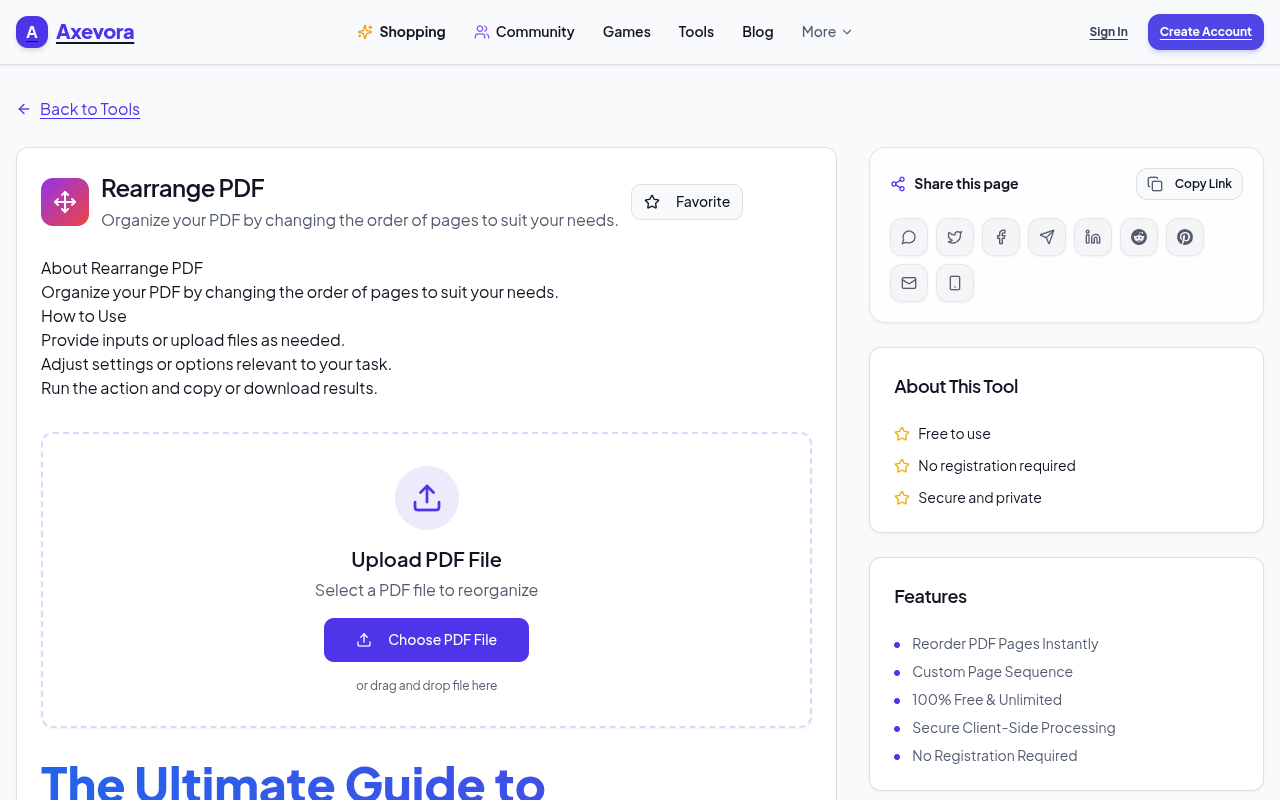
The tool lets you upload a PDF, drag‑and‑drop pages into any sequence you need, and download the newly ordered file. All processing happens client‑side, meaning your document never leaves your computer, and the interface works on Windows, macOS, Linux, and mobile browsers.
Who Can Benefit from This Tool?
- Students – Compile lecture notes, reorder assignments, or create study packs.
- Content creators – Adjust e‑book chapters, portfolio pages, or marketing decks.
- Developers & QA teams – Organize API documentation or test reports.
- Professionals – Reorder contracts, invoices, or HR handbooks without a bulky editor.
- Everyday users – Fix scanned documents, combine receipts, or tidy up personal PDFs.
Real‑World Scenarios Where Rearrange PDF Saves Hours
- Student group project: Each member submits a PDF chapter. Upload the combined file, drag chapters into the correct order, and download a single cohesive report.
- Freelance designer: A client requests a portfolio with a specific flow. Reorder the pages to match the narrative, then send the polished PDF instantly.
- Legal assistant: Contracts often arrive out of sequence. Quickly reorder clauses to match the master template before filing.
- Event organizer: Compile speaker bios, schedules, and sponsor pages into a program booklet without re‑creating the PDF from scratch.
Step‑by‑Step: How to Use Rearrange PDF on Axevora
- Visit Axevora’s Rearrange PDF page.
- Click “Choose File” and select the PDF you want to edit (max 20 MB).
- After the preview loads, drag thumbnails to the desired order. You can also select multiple pages (Shift‑click) and move them together.
- If you need to delete a page, hover over its thumbnail and click the trash* icon.
- When satisfied, hit “Reorder PDF”. The tool will process the file in the browser.
- Download the reordered PDF by clicking the “Download” button that appears.
Key Benefits of Using This Online Tool
- Zero installation: Works in any modern browser.
- Privacy‑first: Files are processed locally; nothing is uploaded to a server.
- Completely free: No hidden fees or trial periods.
- Instant preview: See page thumbnails and order changes in real time.
- Cross‑platform: Use it on desktops, tablets, or smartphones.
Common Mistakes and How to Avoid Them
- Uploading a corrupted PDF – Verify the file opens correctly before uploading.
- Exceeding the size limit – Split large PDFs with a free splitter tool first.
- Forgetting to save – The download button appears only after processing; don’t close the tab prematurely.
- Relying on browser cache – Clear cache if you notice old thumbnails persisting after re‑ordering.
Practical Example Workflow
Scenario: You have a scanned 30‑page meeting minutes PDF where pages 5‑10 are out of order.
- Open the tool and upload the PDF.
- In the thumbnail view, select pages 5‑10, drag them after page 10.
- Delete any duplicate pages that appeared during scanning.
- Reorder any remaining pages (e.g., move the agenda to the front).
- Click “Reorder PDF” and download the corrected minutes.
This process takes under two minutes compared to manually re‑scanning or using a desktop editor.
Frequently Asked Questions
- Is my PDF stored on Axevora’s servers?
- No. All processing occurs locally in your browser; the file never leaves your device.
- Can I reorder password‑protected PDFs?
- The tool can open PDFs that are not encrypted. For protected files, remove the password first using a trusted PDF utility.
- What file formats are supported?
- Only standard PDF files. If you have images or Word documents, convert them to PDF before using the tool.
- Is there a limit to the number of pages?
- While there’s no hard page count limit, very large files (>20 MB) may cause slow performance in some browsers.
Verdict & Call to Action
Axevora’s free Rearrange PDF tool is a must‑have for anyone who deals with PDFs regularly. Its speed, privacy, and zero‑cost model make it a superior alternative to bulky desktop software. Give it a try and streamline your document workflow today.
Try the free Rearrange PDF on Axevora →
 50000
 20000
 20
 20
Explore Related TITTOO Coverage & Discussions
- [Category Hub]: Technology & AI Hub
- [Community Forum]: Technology & AI Discussion Forum
- [Related Editorial Story]: Numerology Horoscope Today: Why Approvals, Sudden Disagreements, and Quiet Realisations Are Intersecting
- [About & Standards]: TITTOO Editorial Standards & Methodology
Discover how to instantly reorder PDF pages without installing software. This evergreen guide walks you through Axevora’s free Rearrange PDF tool, real‑world use cases, and pro tips.
Read the full article ↓Discover how to instantly reorder PDF pages without installing software. This evergreen guide walks you through Axevora’s free Rearrange PDF tool, real‑world use cases, and pro tips.
Yeh quick view original article ke excerpt par based hai. Puri details ke liye Standard Deep mode padhein.
You are reading the original TITTOO article. Existing article text, links, images, and embedded media are preserved.