





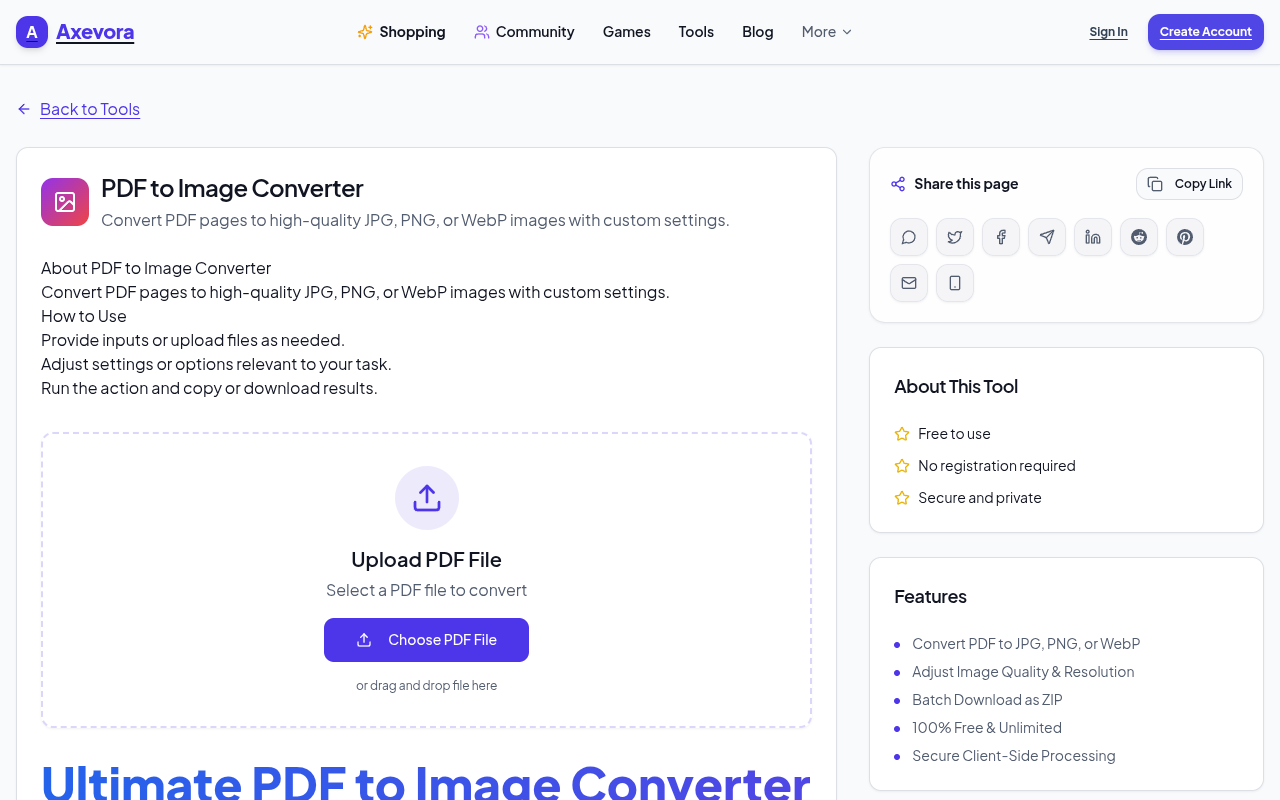
Turn PDFs into Images Instantly: The Free Online PDF to Image Converter on Axevora

Why a PDF‑to‑Image Converter Matters in Today’s Digital World
PDFs are the lingua franca of documents, but they’re not always the most flexible format. Whether you need a quick screenshot for a presentation, a thumbnail for a website, or an image that can be edited in graphic software, converting a PDF page to an image is often the fastest solution. The PDF to Image Converter on Axevora does exactly that—entirely in your browser, with zero data leaving your computer.
What the Tool Does and How It Works
Axevora’s converter transforms each page of an uploaded PDF into a high‑quality JPG or PNG file. The process happens locally, meaning the file never touches a remote server. The tool reads the PDF with JavaScript‑based PDF.js, rasterizes each page onto a canvas, and then exports the canvas as an image you can download instantly.
Who Can Benefit From This Converter?
- Students – extract diagrams or textbook pages for study notes.
- Content creators – generate thumbnails, embed PDF excerpts in blogs, or create social‑media graphics.
- Developers – preview PDF assets without installing heavy libraries.
- Professionals – turn contracts or reports into images for quick annotations.
- Everyday users – share a PDF page as an image on messaging apps that don’t support PDFs.
Real‑World Use Cases
1. Academic Research
Grab a high‑resolution image of a chart from a research paper and paste it directly into a PowerPoint slide.
2. Social Media Marketing
Convert a PDF flyer into a crisp PNG for Instagram or LinkedIn without needing Photoshop.
3. Software Documentation
Extract code snippets from a PDF manual and embed them as images in a wiki that only accepts image uploads.
4. Quick Client Proofs
Send a client a PNG preview of a design PDF so they can view it on any device, even those without a PDF reader.
Step‑by‑Step: How to Use the Free PDF to Image Converter
- Visit Axevora’s PDF to Image Converter.
- Click “Choose File” and select the PDF you want to convert.
- Pick the output format: JPG for smaller files or PNG for lossless quality.
- Optionally set the image resolution (DPI) if you need higher detail.
- Press “Convert”. The browser processes the file locally.
- When conversion finishes, download each page image individually or as a ZIP archive.
Key Benefits at a Glance
- Browser‑based: No installation, works on Windows, macOS, Linux, and ChromeOS.
- Privacy‑first: All processing occurs on your device; your PDF never leaves your computer.
- Free forever: No hidden fees, no registration.
- Multiple formats: Choose between JPG (compressed) and PNG (lossless).
- Batch support: Convert multi‑page PDFs in one click and download a ZIP.
Common Mistakes & How to Avoid Them
- Choosing too low a DPI – Low resolution images look pixelated. For print‑ready graphics, select 300 DPI or higher.
- Uploading a protected PDF – Password‑protected files can’t be read by the browser. Remove the password first.
- Expecting editable text – The output is an image; text isn’t selectable. Use OCR tools if you need searchable text.
- Skipping the ZIP download – For PDFs with many pages, downloading each image separately is time‑consuming. Use the ZIP option.
Practical Example Workflow
Scenario: You’re preparing a client presentation and need three charts from a 20‑page PDF report.
- Open the converter and upload the report.
- Select PNG for lossless quality.
- Set DPI to 300 for crisp printing.
- Convert and download the ZIP.
- Extract only the three chart images you need.
- Insert them into PowerPoint, adjust size, and you’re ready to present.
This workflow saves you from opening a PDF editor, manually cropping, and re‑saving each image—a process that can take 15‑20 minutes per chart.
Frequently Asked Questions
Is there a file size limit?
Axevora allows PDFs up to 25 MB for free conversion. Larger files can be split into smaller sections before uploading.
Do I need an internet connection after the upload?
No. Once the file is selected, all conversion happens locally, so you can even go offline after the initial page load.
Can I convert PDFs that contain transparent backgrounds?
Yes. When you choose PNG, any transparent elements in the PDF are preserved in the output image.
What browsers are supported?
Modern browsers with HTML5 and Canvas support—Chrome, Edge, Firefox, Safari, and Opera.
Final Verdict & Call to Action
If you regularly need to repurpose PDF content as images, Axevora’s free PDF to Image Converter is a must‑have tool. It’s fast, secure, and eliminates the need for bulky desktop software. Give it a spin and see how many minutes you can shave off your workflow.
Try the free PDF to Image Converter on Axevora →
 50000
 20000
 20
 20
Explore Related TITTOO Coverage & Discussions
- [Category Hub]: Technology & AI Hub
- [Community Forum]: Technology & AI Discussion Forum
- [Related Editorial Story]: How to Instantly Shrink PDFs for Free: A Complete Guide to Using Axevora’s Compress PDF Tool
- [About & Standards]: TITTOO Editorial Standards & Methodology
Convert any PDF to JPG or PNG in seconds—no download, no privacy worries. Learn how Axevora’s free PDF to Image Converter fits into everyday workflows.
Read the full article ↓Convert any PDF to JPG or PNG in seconds—no download, no privacy worries. Learn how Axevora’s free PDF to Image Converter fits into everyday workflows.
Yeh quick view original article ke excerpt par based hai. Puri details ke liye Standard Deep mode padhein.
You are reading the original TITTOO article. Existing article text, links, images, and embedded media are preserved.