





Convert Audio Files Instantly for Free: How to Master Axevora’s Online Audio Converter

Why an Online Audio Converter Matters in Modern Workflows
From remote learning to podcast production, audio files appear everywhere. Yet the right format is often a stumbling block—whether it’s a lecture that needs to be MP3‑compressed for quick sharing, or a lossless FLAC track required for archival. Installing desktop software can be time‑consuming, risky, or simply unavailable on shared devices. That’s where a browser‑based solution like Axevora’s Audio Converter shines: instant, free, and privacy‑first.
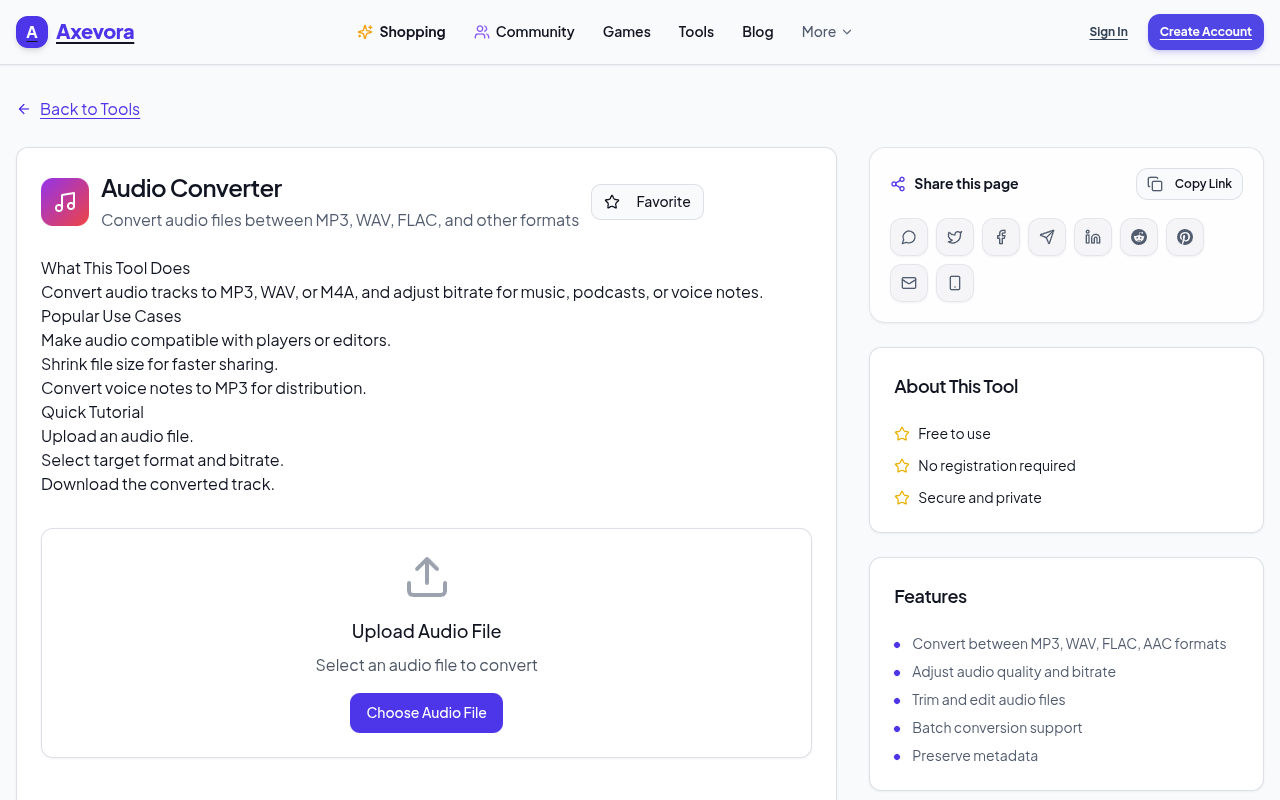
What the Audio Converter Does
The tool converts audio files between the most common formats (MP3, WAV, FLAC, AAC, OGG, etc.) directly in your browser. You upload a file, select the desired output, and the conversion happens on the client side—meaning your data never leaves your computer unless you choose to download it.
Who Can Benefit
- Students needing to compress lecture recordings for email attachments.
- Content creators who must meet platform‑specific audio specs.
- Developers testing audio playback across browsers.
- Professionals converting interview clips for reports.
- Everyday users who want to trim storage space on phones.
Real‑World Use Cases
- Podcast post‑production: Convert raw WAV recordings to MP3 at 128 kbps for publishing.
- Academic sharing: Turn a 30‑minute FLAC lecture into a lightweight MP3 to upload to a learning management system.
- App development: Quickly generate OGG files for Android testing without leaving the IDE.
- Travel journaling: Compress voice memos on a phone before sending them to friends.
Step‑by‑Step: How to Use the Free Audio Converter
- Visit Axevora’s Audio Converter page.
- Click the “Choose File” button and select the audio you want to convert.
- From the “Output Format” dropdown, pick MP3, WAV, FLAC, or any supported type.
- Optional: Adjust bitrate, sample rate, or channel settings if advanced options appear.
- Press “Convert”**. The tool processes the file in the browser.
- When conversion finishes, click “Download”** to save the new file to your device.
Key Benefits Over Desktop Alternatives
- Zero installation: Works on any modern browser, even on public computers.
- Privacy‑first: Files are processed locally; nothing is uploaded to a server.
- Cost‑free: No hidden fees, subscriptions, or trial periods.
- Cross‑platform: Windows, macOS, Linux, ChromeOS, and mobile browsers are all supported.
- Instant feedback: Progress bar shows conversion status in real time.
Common Mistakes & How to Avoid Them
- Choosing the wrong bitrate: Selecting a very low bitrate can make speech unintelligible. Stick to at least 96 kbps for voice, 128 kbps for music.
- Uploading huge files on a slow connection: Large FLAC files (>100 MB) may take longer; consider splitting or compressing before upload.
- Forgetting to check channel settings: Converting stereo to mono reduces size but may affect audio quality—verify your needs first.
- Leaving the page before download: The conversion finishes in the browser; if you navigate away, you’ll lose the file.
Practical Example Workflows
Workflow 1: Student Sharing a Lecture
Record a lecture in WAV (default on many apps). Open the Audio Converter, select MP3, set bitrate to 128 kbps, convert, and email the 15 MB MP3 instead of the 150 MB WAV.
Workflow 2: Podcast Host Preparing an Episode
Export the final edit as a 24‑bit WAV. In the converter, choose MP3 at 192 kbps, enable “Normalize volume,” convert, then upload the resulting file to your hosting platform.
Workflow 3: Developer Testing Audio Compatibility
Take a single‑track OGG file, convert it to MP3 and WAV, then embed each version in a test HTML page to verify playback across Chrome, Safari, and Edge.
Frequently Asked Questions
- Is there a file size limit?
- The tool accepts files up to 200 MB per upload, which covers most typical use cases.
- Are my files stored on Axevora’s servers?
- No. All processing happens locally in your browser; only the download link is generated for you.
- Can I batch‑convert multiple files at once?
- Currently the free version handles one file at a time, but you can quickly repeat the steps for each file.
- Do I need an internet connection after the page loads?
- Yes, the initial page load requires internet, but the actual conversion runs offline in the browser.
Final Verdict & Call to Action
Axevora’s free Audio Converter eliminates the friction of format incompatibility without compromising privacy or cost. Whether you’re a student, podcaster, or developer, the tool saves time and keeps your workflow lean. Give it a spin and experience instant, secure audio conversion directly from your browser.
Try the free Audio Converter on Axevora →
 50000
 20000
 20
 20
Explore Related TITTOO Coverage & Discussions
- [Category Hub]: Technology & AI Hub
- [Community Forum]: Technology & AI Discussion Forum
- [Related Editorial Story]: USTR Greer Says No Immediate India‑US Trade Deal, but Talks Between Modi and Trump Likely Soon
- [About & Standards]: TITTOO Editorial Standards & Methodology
Discover how Axevora’s free Audio Converter turns MP3, WAV, FLAC and more in seconds—no download, no hassle. Follow our step‑by‑step guide to boost your digital workflow today.
Read the full article ↓Discover how Axevora’s free Audio Converter turns MP3, WAV, FLAC and more in seconds—no download, no hassle. Follow our step‑by‑step guide to boost your digital workflow today.
Yeh quick view original article ke excerpt par based hai. Puri details ke liye Standard Deep mode padhein.
You are reading the original TITTOO article. Existing article text, links, images, and embedded media are preserved.