






How to Instantly Convert Money Online for Free: Master the Axevora Currency Converter

Why a Free Online Currency Converter Matters in Modern Workflows
Whether you’re a freelancer invoicing overseas clients, a traveler budgeting for a trip, or a student comparing tuition fees, currency conversion is a daily friction point. Traditional methods—spreadsheets, manual lookup, or paid apps—slow you down and risk outdated rates. A browser‑based tool that pulls live exchange data, respects privacy, and costs nothing can eliminate that friction entirely.
What the Axevora Currency Converter Does
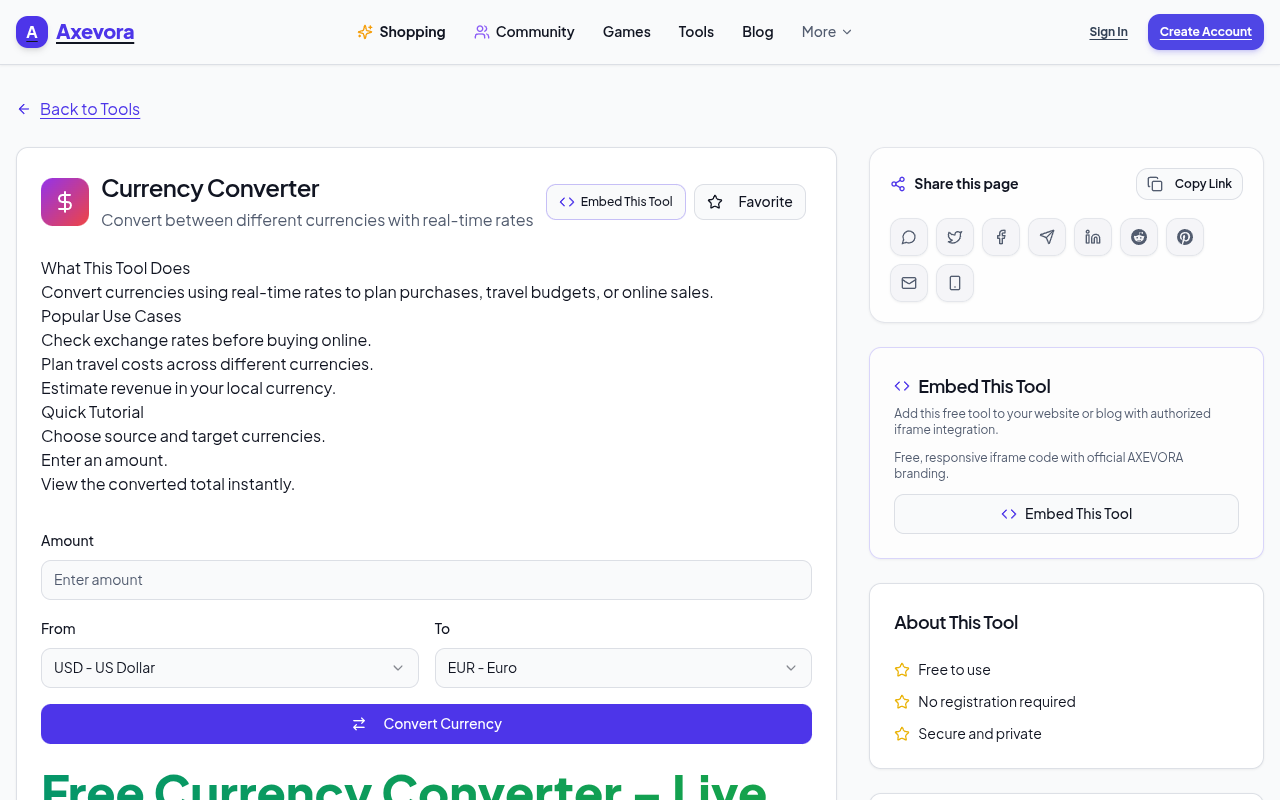
The Currency Converter on Axevora is a lightweight web utility that lets you input an amount, select a source currency, and choose a target currency. It instantly fetches the latest market rate from reputable financial APIs and displays the converted value. Everything runs client‑side, so your data never leaves the browser.
Who Should Use This Tool
- Students & Researchers comparing international tuition or research grants.
- Content Creators & Marketers pricing products for global audiences.
- Developers & Data Analysts needing quick sanity checks on financial data.
- Everyday Users planning travel budgets, online shopping, or family remittances.
Real‑World Use Cases That Save Hours
1. Freelance Invoice Preparation
You charge $50 USD per hour, but a client in Germany pays in EUR. Plug the hourly rate into the converter, select USD → EUR, and copy the exact figure into your invoice—no manual math, no rounding errors.
2. Travel Budgeting
Planning a two‑week trip to Japan? Enter your total budget in your home currency, switch to JPY, and instantly see how far your money will stretch. Adjust accommodations or activities on the fly with live rates.
3. E‑commerce Price Comparison
Shopping on an overseas site? Convert the listed price to your local currency to decide if the deal truly beats domestic alternatives, accounting for the most recent exchange fluctuations.
4. Academic Research
When analyzing global economic data, you often need to standardize figures to a single currency. A quick conversion for each data point keeps your spreadsheet clean and your analysis credible.
Step‑by‑Step: How to Use the Axevora Currency Converter
- Open the Currency Converter page in any modern browser.
- Enter the amount you want to convert in the “From” field.
- Select the source currency (e.g., USD) from the dropdown.
- Choose the target currency (e.g., GBP) in the second dropdown.
- The tool automatically fetches the current exchange rate and displays the converted amount below.
- If needed, click the “Swap” button to reverse the conversion direction instantly.
- Use the “Copy” icon to copy the result to your clipboard for pasting into documents, emails, or spreadsheets.
Key Benefits of This Browser‑Based Converter
- Zero Installation – Runs entirely in the browser.
- Privacy‑First – No data is stored or transmitted beyond the rate lookup.
- Free Forever – No hidden subscriptions or premium tiers.
- Real‑Time Rates – Updates every few seconds from trusted financial feeds.
- Device‑Agnostic – Works on desktops, tablets, and smartphones.
Common Mistakes and How to Avoid Them
- Assuming the rate is static – Exchange rates fluctuate; always refresh the page before finalizing a transaction.
- Ignoring fees – The tool shows the market rate only; add any bank or platform fees separately.
- Using the wrong currency code – Double‑check ISO codes (e.g., “CAD” vs. “CDA”).
- Relying on the tool for large‑scale financial decisions – For high‑value trades, consult a professional or a dedicated forex platform.
Practical Examples & Sample Workflows
Example: Quick Quote for an International Client
1. Open the converter and type 1200 in the amount box.
2. Choose USD → AUD. The tool shows 1,620.45 AUD (rate: 1.3504).
3. Copy the result, paste it into your proposal, and add a note: “Based on live exchange rate as of [date].”
Example: Building a Multi‑Currency Spreadsheet
1. In Google Sheets, use =IMPORTHTML("https://axevora.com/tools/currency-converter","table",1) to pull the latest rates (or manually copy).
2. Apply a simple formula like =A2*B2 where A2 is the amount and B2 is the fetched rate.
3. Refresh the sheet weekly to keep figures current.
Frequently Asked Questions (FAQ)
Is the Axevora Currency Converter really free?
Yes. There are no hidden charges, premium tiers, or registration requirements. You can use it as often as you like.
How often are the exchange rates updated?
The tool pulls rates from live financial APIs and refreshes them roughly every 60 seconds, ensuring you see the most recent market price.
Can I use the converter on a mobile device?
Absolutely. The interface is responsive and works on any modern smartphone or tablet browser.
Does the tool store my conversion history?
No. All calculations happen locally in your browser; once you close the tab, the data is cleared.
Verdict & Call to Action
The Axevora Currency Converter is a deceptively simple yet powerful ally for anyone who deals with money across borders. Its real‑time accuracy, zero‑cost model, and privacy‑centric design make it an indispensable shortcut in daily workflows. Stop juggling spreadsheets or guessing rates—let the browser do the heavy lifting.
Try the free Currency Converter on Axevora →
 50000
 20000
 20
 20
Explore Related TITTOO Coverage & Discussions
- [Category Hub]: Technology & AI Hub
- [Community Forum]: Technology & AI Discussion Forum
- [Related Editorial Story]: Convert Audio Files Instantly for Free: How to Master Axevora’s Online Audio Converter
- [About & Standards]: TITTOO Editorial Standards & Methodology
Discover the hassle‑free way to turn any amount into any currency with real‑time rates—no apps, no installs. This guide walks you through the Axevora Currency Converter, its everyday power moves, and how to avoid common pitfalls.
Read the full article ↓Discover the hassle‑free way to turn any amount into any currency with real‑time rates—no apps, no installs. This guide walks you through the Axevora Currency Converter, its everyday power moves, and how to avoid common pitfalls.
Yeh quick view original article ke excerpt par based hai. Puri details ke liye Standard Deep mode padhein.
You are reading the original TITTOO article. Existing article text, links, images, and embedded media are preserved.