






Convert Images in Seconds: Free Online Image Converter on Axevora

Why an Online Image Converter Is a Must‑Have Today
From quick social‑media posts to professional design hand‑offs, modern digital workflows demand images in the right format, size, and quality. Installing bulky software for occasional conversions is inefficient, and desktop apps often leave your files on the local drive, raising privacy concerns. A browser‑based solution like Axevora’s Image Converter solves these pain points by delivering instant, secure, and free format changes directly from any device.
What the Image Converter Does
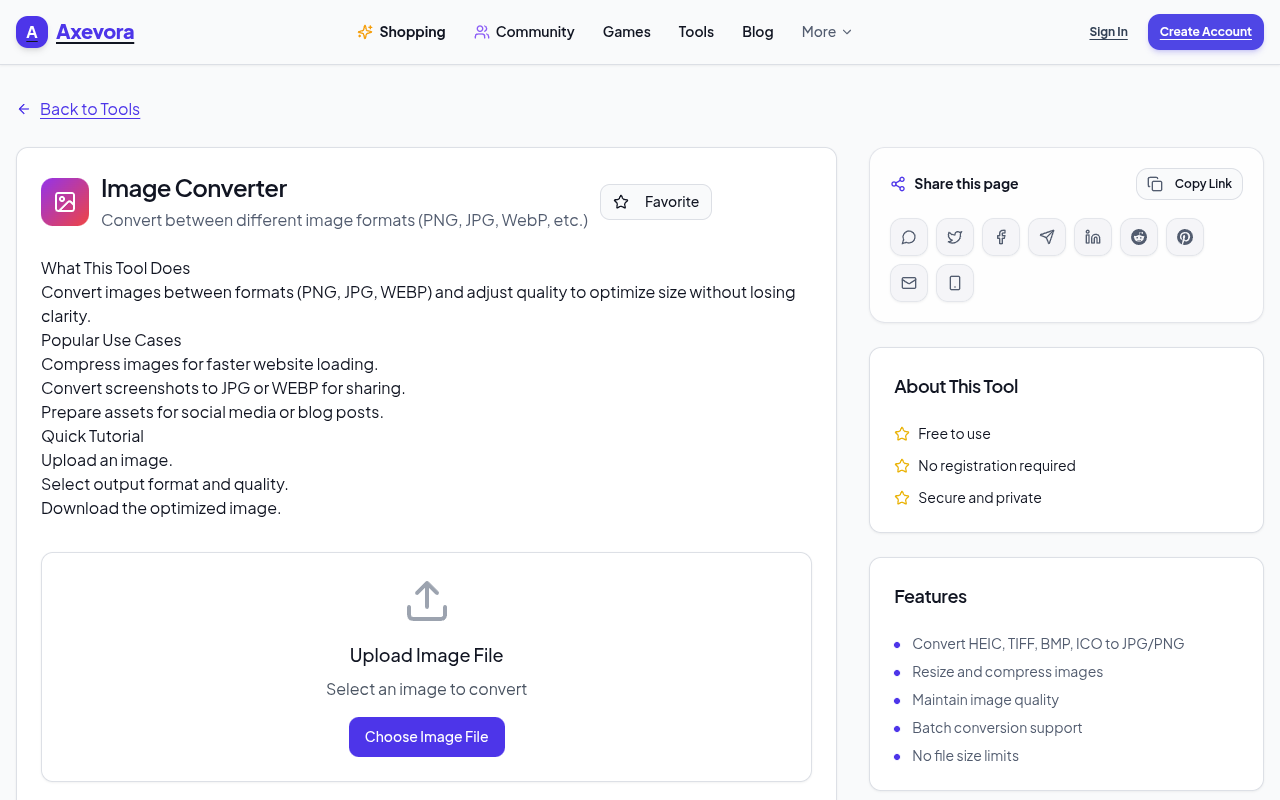
The tool lets you upload an image (PNG, JPG, JPEG, GIF, BMP, WebP, TIFF, etc.) and instantly download it in a different format of your choice. It runs entirely in the browser using client‑side JavaScript, meaning your files never leave your computer. The conversion engine handles color profiles, transparency, and basic compression settings, giving you a ready‑to‑use file in seconds.
Who Should Use This Tool
- Students preparing presentations or assignments.
- Content creators needing web‑optimized graphics.
- Web developers converting assets for performance.
- Marketing professionals resizing campaign visuals.
- Everyday users who want to share images across platforms.
Real‑World Use Cases
- Social‑media scheduling: Convert high‑resolution PNGs to compressed JPGs to meet platform size limits without losing visual fidelity.
- Web performance optimization: Switch bulky BMPs or PNGs to WebP for faster page loads while preserving transparency.
- Cross‑platform asset delivery: Provide clients with both PNG (for design) and JPG (for email) versions in one go.
- Academic publishing: Turn screenshots (often GIF) into lossless PNGs for clear inclusion in PDFs.
Step‑by‑Step: How to Use the Image Converter
- Visit Axevora’s Image Converter page.
- Click “Choose File” and select the image you want to convert.
- From the “Output Format” dropdown, pick your desired format (e.g., JPG, WebP, PNG).
- Optional: Adjust quality or compression sliders if available.
- Press “Convert”**. The tool processes the file instantly.
- When the preview appears, click “Download”** to save the new file to your device.
Key Benefits at a Glance
- Browser‑based: No installations, works on Windows, macOS, Linux, iOS, Android.
- Privacy‑first: Files are processed locally; nothing is uploaded to a server.
- Completely free: No hidden fees, no account required.
- Instant results: Most conversions finish within a few seconds.
- Multiple formats: Supports PNG, JPG, JPEG, GIF, BMP, WebP, TIFF, and more.
Common Mistakes & How to Avoid Them
- Choosing too low a quality setting: Reducing JPG quality below 70% can cause noticeable artifacts. Keep it at 80%+ for most uses.
- Forgetting transparency: Converting a PNG with transparency to JPG will replace transparent areas with a solid background. Use WebP or keep PNG if you need alpha.
- Uploading massive files: Extremely large images (>20 MB) may slow down the browser. Resize or crop before converting.
- Relying on one‑click batch conversion: The free tool processes one file at a time. For bulk jobs, repeat the steps or consider a desktop batch converter.
Practical Example Workflows
Workflow 1: Preparing a Blog Post Image
1. Capture a screenshot (PNG).
2. Open the Image Converter, select PNG → JPG, set quality to 85%.
3. Download the JPG and upload it to your CMS, reducing page load time.
Workflow 2: Optimizing an E‑commerce Product Gallery
1. Gather product photos in high‑resolution PNG.
2. Convert each to WebP using the tool, preserving transparency.
3. Replace the old files on your site; browsers that support WebP will serve the smaller files, boosting SEO.
Workflow 3: Quick Email Attachment
1. Choose a large BMP file from an old scan.
2. Convert to JPG at 80% quality.
3. Attach the new file—well under most email size limits.
Frequently Asked Questions (FAQ)
- Is my data safe?
- Yes. The conversion runs entirely in your browser; no image is uploaded to Axevora’s servers.
- Can I convert multiple images at once?
- The free version processes one file per conversion. For batch jobs, repeat the steps or use a desktop utility.
- What if the output looks blurry?
- Check the quality/compression slider. Higher quality retains detail; also ensure you’re not converting a low‑resolution source.
- Does the tool support animated GIFs?
- Animated GIFs are accepted, but conversion will flatten them to a single frame. Use a dedicated GIF editor for animation preservation.
Verdict & Call to Action
Axevora’s free Image Converter is a lightweight, privacy‑centric solution that eliminates the need for bulky software when you just need a quick format change. Its speed, simplicity, and zero cost make it an essential addition to any digital workflow—whether you’re a student, marketer, or developer.
Ready to streamline your image handling? Try the free Image Converter on Axevora →
 50000
 20000
 20
 20
Explore Related TITTOO Coverage & Discussions
- [Category Hub]: Technology & AI Hub
- [Community Forum]: Technology & AI Discussion Forum
- [Related Editorial Story]: Anushka Sharma and Parents Pick Up Twin Versova High-Rise Homes in ₹25.8 Crore Deal
- [About & Standards]: TITTOO Editorial Standards & Methodology
Discover how Axevora’s free Image Converter can instantly transform PNG, JPG, WebP and more—no software, no hassle. Follow our step‑by‑step guide to integrate this tool into any workflow.
Read the full article ↓Discover how Axevora’s free Image Converter can instantly transform PNG, JPG, WebP and more—no software, no hassle. Follow our step‑by‑step guide to integrate this tool into any workflow.
Yeh quick view original article ke excerpt par based hai. Puri details ke liye Standard Deep mode padhein.
You are reading the original TITTOO article. Existing article text, links, images, and embedded media are preserved.