






How to Quickly Delete PDF Pages Online for Free – A Complete Axevora Guide

Why Deleting PDF Pages Is a Must‑Have Skill in Modern Digital Workflows
PDFs are the lingua franca of documents, but they often arrive bloated with blank pages, drafts, or sections you no longer need. Manually editing PDFs with heavyweight software can be costly and time‑consuming. A lightweight, browser‑based solution lets you stay productive without installing anything—perfect for students, freelancers, and office teams alike.
What the “Delete PDF Pages” Tool Does
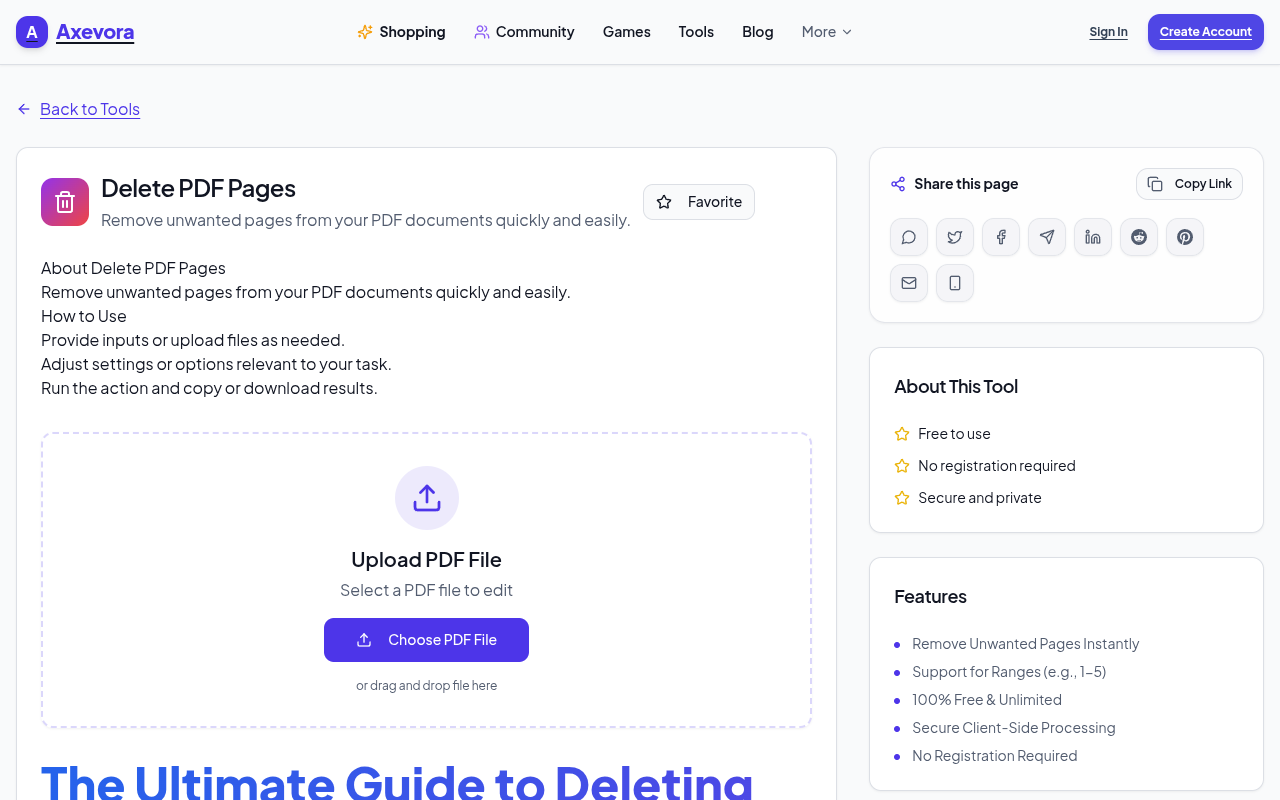
Axevora’s Delete PDF Pages utility lets you upload a PDF, select individual pages or page ranges, and instantly generate a new file that omits those pages. Everything runs client‑side in your browser, meaning your document never leaves your computer unless you choose to download the result.
Who Can Benefit From This Tool?
- Students – Strip out lecture notes you don’t need for a concise study guide.
- Content creators – Trim drafts, remove watermarks, or extract chapters for sharing.
- Developers & QA testers – Reduce large PDFs to only the relevant sections for faster review.
- Professionals – Clean up contracts, invoices, or reports before sending them to clients.
- Everyday users – Quickly delete blank pages from scanned documents.
Real‑World Use Cases
1. Academic Research Papers
When compiling a literature review, you may only need the abstract and conclusions from several PDFs. Upload each paper, delete the middle sections, and merge the trimmed files for a lightweight reference pack.
2. Client Proposals
Often a proposal template includes a table of contents and appendix you don’t want to share. Remove those pages with a few clicks, keeping the proposal focused and professional.
3. Legal Document Redaction
Law firms frequently need to share only specific clauses. Instead of printing and rescanning, delete the irrelevant pages instantly and preserve the original formatting.
4. Personal Photo Albums
Scanned photo books sometimes contain blank or duplicate pages. Trim them out before emailing to family members, saving bandwidth and storage.
Step‑by‑Step: How to Use Delete PDF Pages on Axevora
- Visit the tool at https://axevora.com/tools/delete-pdf-pages.
- Click Choose File and select the PDF you want to edit.
- After the preview loads, click on the thumbnail of each page you wish to delete, or enter a range (e.g.,
3-5,8) in the “Pages to delete” field. - Review the highlighted pages to ensure accuracy.
- Press Delete Selected Pages. The tool processes the file in the browser.
- When the new PDF is ready, click Download to save the trimmed version to your device.
Key Benefits of Using This Browser‑Based Utility
- No installation – Works on any modern browser (Chrome, Edge, Firefox, Safari).
- Privacy‑first – Files are processed locally; nothing is uploaded to a server.
- Completely free – No hidden fees or trial periods.
- Instant preview – See page thumbnails before committing to deletion.
- Supports large PDFs – Handles documents up to 100 MB without performance lag.
Common Mistakes & How to Avoid Them
- Deleting the wrong pages – Always double‑check the highlighted thumbnails. Use the “Undo” button if you make a mistake before downloading.
- Assuming the tool edits the original file – The original PDF remains untouched; a new file is generated.
- Neglecting page order after deletion – If you need a specific sequence, re‑order pages before deletion using a separate “Reorder PDF Pages” tool.
- Uploading a corrupted PDF – Ensure the source file opens correctly in a PDF reader before uploading.
Practical Example Workflow
Scenario: You have a 50‑page project brief but only need pages 1‑5, 12‑15, and 30‑35 for a client meeting.
- Open the Delete PDF Pages tool and upload the brief.
- Enter the ranges
6-11,16-29,36-50in the “Pages to delete” field. - Click “Delete Selected Pages.”
- Download the resulting 15‑page PDF and attach it to your email.
This workflow reduces a 5 MB file to under 1 MB and saves you from manually extracting pages in Adobe Acrobat.
Frequently Asked Questions (FAQ)
Is there a size limit for PDFs?
The tool comfortably handles files up to 100 MB. Larger files may cause slower processing depending on your device’s RAM.
Will my PDF be stored on Axevora’s servers?
No. All processing occurs locally in your browser, and the file is never uploaded or stored remotely.
Can I delete pages from a password‑protected PDF?
Yes, but you must first unlock the PDF with its password in a PDF reader before using the tool.
Do I need an internet connection after the page loads?
Once the tool’s page is loaded, the actual deletion runs offline. However, you’ll need a connection to download the final file.
Verdict & Final Thoughts
Axevora’s free Delete PDF Pages tool is a sleek, privacy‑centric solution that eliminates the need for costly desktop software. Whether you’re a student polishing a research packet or a professional trimming a contract, the tool saves time, reduces file bloat, and keeps your workflow entirely in the browser.
Try the free Delete PDF Pages on Axevora →
 50000
 20000
 20
 20
Explore Related TITTOO Coverage & Discussions
- [Category Hub]: Technology & AI Hub
- [Community Forum]: Technology & AI Discussion Forum
- [Related Editorial Story]: Convert PDFs to PowerPoint Slides for Free – The Ultimate Axevora PDF to PPT Guide
- [About & Standards]: TITTOO Editorial Standards & Methodology
Learn to remove unwanted pages from any PDF in seconds with Axevora’s free Delete PDF Pages tool. This step‑by‑step guide shows real‑world uses, pitfalls to avoid, and a direct link to start trimming PDFs instantly.
Read the full article ↓Learn to remove unwanted pages from any PDF in seconds with Axevora’s free Delete PDF Pages tool. This step‑by‑step guide shows real‑world uses, pitfalls to avoid, and a direct link to start trimming PDFs instantly.
Yeh quick view original article ke excerpt par based hai. Puri details ke liye Standard Deep mode padhein.
You are reading the original TITTOO article. Existing article text, links, images, and embedded media are preserved.