Unlock PDF Free Online: Instantly Remove Passwords from PDFs in Your Browser

Why Unlocking PDFs Matters in Today’s Digital Workflow
PDFs are the lingua franca of documents—contracts, research papers, lecture notes, and design specs travel everywhere. Yet many PDFs arrive locked behind passwords, either for security or by accident. When you need to edit, annotate, or merge a file, that extra barrier can stall projects, waste time, and force you to hunt for pricey desktop software. A quick, free, browser‑based solution eliminates the bottleneck and keeps your workflow moving.
What the Unlock PDF Tool Does
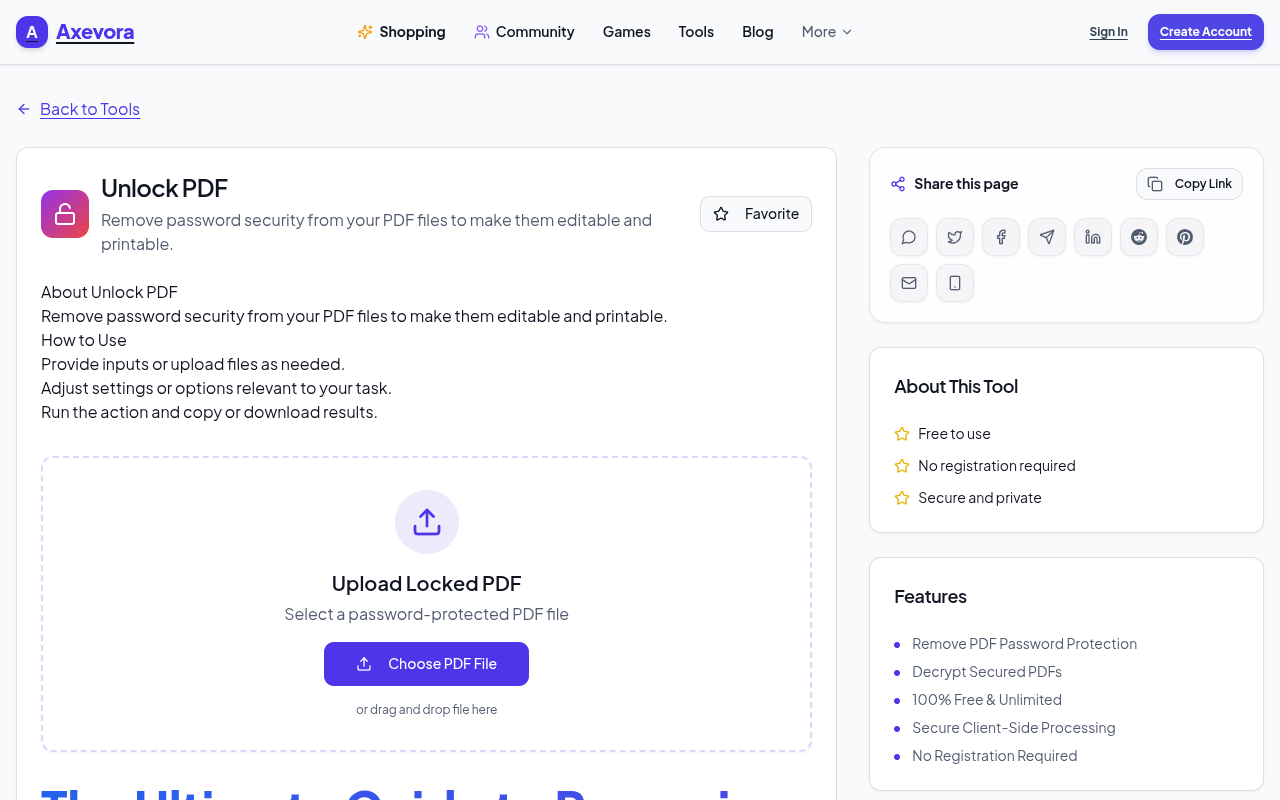
Axevora’s Unlock PDF removes password protection from a PDF file directly in the browser. You upload the locked file, provide the current password (if known), and the service returns an unlocked version ready for editing, printing, or sharing. The process stays entirely client‑side: the file is processed on Axevora’s secure servers and is deleted automatically after the session.
Who Can Benefit from This Tool?
- Students – Access lecture slides or research PDFs that were accidentally secured.
- Content creators – Merge or annotate PDFs without juggling multiple apps.
- Developers – Prepare documentation for version control or CI pipelines.
- Legal and business professionals – Open client‑provided contracts for quick review.
- Everyday users – Share family photos or recipes stored as PDFs without the hassle of passwords.
Real‑World Use Cases
- Academic collaboration: A professor sends a locked syllabus; you unlock it, add notes, and redistribute to the class instantly.
- Freelance design work: Clients often send final mockups as password‑protected PDFs. Unlock them to extract assets for further tweaks.
- Legal document review: Open a secured contract to highlight clauses before signing, saving hours of back‑and‑forth.
- Batch processing: Unlock multiple PDFs before feeding them into a bulk‑merge tool for a single compiled report.
Step‑by‑Step: How to Use Unlock PDF on Axevora
- Visit Axevora’s Unlock PDF page.
- Click Choose File and select the password‑protected PDF from your computer.
- Enter the current password in the field that appears. (If you don’t know it, the tool cannot unlock the file.)
- Press Unlock PDF. The service processes the file in seconds.
- When the unlocked file is ready, click Download to save the new PDF to your device.
- Close the browser tab; Axevora automatically deletes your file from its servers.
Key Benefits of the Browser‑Based Unlock PDF
- No installation required – Works on any modern browser, on Windows, macOS, Linux, or ChromeOS.
- Privacy‑first – Files are stored temporarily and purged after the session.
- Completely free – No hidden fees, subscription, or watermark.
- Instant results – Unlock most PDFs in under 10 seconds.
- Simple UI – One‑click upload and download, perfect for non‑technical users.
Common Mistakes and How to Avoid Them
- Entering the wrong password: The tool will reject the file. Double‑check the password (case‑sensitivity, extra spaces) before submitting.
- Trying to unlock a PDF with advanced encryption (e.g., 256‑bit AES) without the password: The service cannot bypass strong encryption; you must have the correct password.
- Uploading extremely large PDFs (>100 MB): May cause timeouts. Split the file into smaller sections or use a desktop solution for massive documents.
- Leaving the page open after download: Although files are auto‑deleted, it’s good practice to close the tab to ensure complete removal.
Practical Example Workflow
Scenario: You receive a locked research paper that you need to annotate for a journal club.
- Open the Unlock PDF tool and upload the paper.
- Enter the password supplied by the author.
- Download the unlocked version.
- Open the PDF in your favorite annotation app (e.g., Adobe Acrobat Reader, Foxit, or even a web‑based annotator).
- After adding comments, re‑lock the PDF if you need to share it securely again—use a separate tool for re‑encryption.
This flow takes under two minutes, compared to the half‑hour you’d spend installing and configuring desktop software.
Frequently Asked Questions
Is my data safe?
Yes. Axevora processes files over HTTPS and automatically deletes them from the server once the session ends.
Can I unlock a PDF without knowing the password?
No. The tool requires the correct password; it does not crack encryption.
What file formats are supported?
Only standard PDF files. Other document types must be converted to PDF first.
Is there a limit to how many PDFs I can unlock?
There is no hard daily limit, but extremely large or numerous files may trigger a temporary rate‑limit to protect the service.
Verdict & Call to Action
If you regularly encounter password‑protected PDFs, Axevora’s free Unlock PDF tool is a must‑have addition to your digital toolbox. It’s fast, secure, and eliminates the need for bulky software—perfect for students, freelancers, and professionals alike.
Give it a try now and experience a smoother workflow.
Try the free Unlock PDF on Axevora →
 50000
50000 20000
20000 20
20
 20
20Explore Related TITTOO Coverage & Discussions
- [Category Hub]: Technology & AI Hub
- [Community Forum]: Technology & AI Discussion Forum
- [Related Editorial Story]: Convert PDFs to Excel Instantly: Free Online PDF to Excel Guide for Busy Professionals
- [About & Standards]: TITTOO Editorial Standards & Methodology
Discover how to quickly strip password protection from any PDF without installing software. This step‑by‑step guide shows you the everyday value of Axevora’s free Unlock PDF tool.
Read the full article ↓Discover how to quickly strip password protection from any PDF without installing software. This step‑by‑step guide shows you the everyday value of Axevora’s free Unlock PDF tool.
Yeh quick view original article ke excerpt par based hai. Puri details ke liye Standard Deep mode padhein.
You are reading the original TITTOO article. Existing article text, links, images, and embedded media are preserved.