






Validate Email Addresses Instantly: Free Online Email Validator on Axevora

Why an Email Validator Matters in Modern Digital Workflows
Every day we exchange dozens of email addresses—whether for newsletters, client outreach, or collaborative projects. A single typo can bounce a campaign, break a CRM import, or expose personal data. A quick, reliable validation step saves time, protects reputation, and keeps data clean without installing bulky software.
What the Email Validator Does
The Email Validator on Axevora checks two core elements:
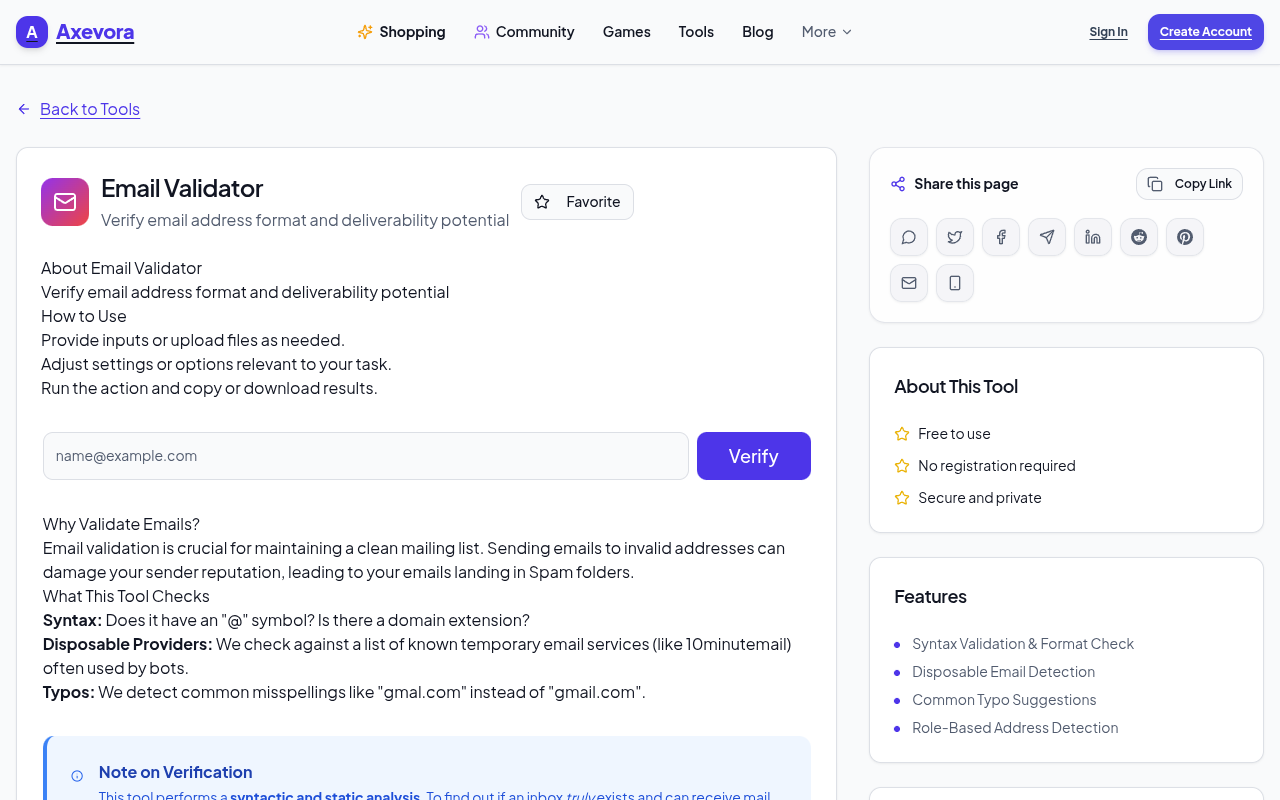
- Syntax validation: Ensures the address follows RFC‑5322 rules (e.g., one
@, proper domain format, allowed characters). - Common domain typo detection: Flags likely misspellings such as
gamil.cominstead ofgmail.comoryaho.cominstead ofyahoo.com.
All processing happens locally in your browser; your data never leaves the page.
Who Should Use This Tool
- Students & Researchers: Clean up contact lists for group projects.
- Content Creators & Marketers: Verify subscriber emails before a launch.
- Developers & QA Engineers: Test form inputs and API payloads.
- Everyday Professionals: Quickly check a colleague’s address before sending an important file.
Real‑World Use Cases
1. Bulk Newsletter Prep
Before uploading a CSV to Mailchimp, paste the column into the validator. Invalid rows are highlighted, letting you correct them in minutes rather than hours of bounce‑back analysis.
2. CRM Data Hygiene
When importing leads into Salesforce, run each email through the tool to catch domain typos that would otherwise create duplicate or orphan records.
3. Form Development & QA
Developers can copy‑paste sample inputs from UI tests to instantly verify that front‑end validation matches backend expectations.
4. Personal Email Checks
Before sending a proposal to a new client, type the address into the validator to avoid embarrassing delivery failures.
Step‑by‑Step: How to Use the Email Validator
- Open Axevora’s Email Validator page in any modern browser.
- Locate the large input box labeled “Enter email address”.
- Type or paste the email you want to check.
- Press Validate or hit Enter.
- Read the result:
- Valid – Syntax is correct and the domain looks legitimate.
- Invalid – The tool lists the exact rule that failed (e.g., missing “@”, illegal characters).
- Typo Detected – Suggested correction for common domain misspelling.
- Copy the corrected address (if suggested) and replace it in your source file or form.
Key Benefits of This Browser‑Based Tool
- Zero Installation: Works entirely in the browser.
- Privacy‑First: No data is stored or transmitted to a server.
- Free Forever: No hidden fees or trial limits.
- Instant Feedback: Results appear in seconds.
- Cross‑Platform: Works on Windows, macOS, Linux, and mobile browsers.
Common Mistakes and How to Avoid Them
- Copy‑pasting extra spaces: Trim leading/trailing whitespace before validation.
- Assuming “valid” means deliverable: The tool checks syntax and domain plausibility, not mailbox existence. Use a dedicated deliverability service for that.
- Validating only one address at a time: For bulk lists, copy the entire column into a spreadsheet, then use the “Batch Validate” add‑on (or script) that calls the same logic.
- Ignoring suggested corrections: The typo detector is highly accurate; applying its suggestion usually resolves the issue.
Practical Example Workflow
Imagine you run a small e‑commerce store and collect emails via a checkout form. Here’s a quick workflow to keep your list clean:
- Export the
customers.csvfile from your platform. - Open the CSV in Google Sheets and copy the email column.
- Paste the column into a temporary text editor, then copy all lines.
- Open the Email Validator, paste the first address, click Validate, and note the result.
- Use the spreadsheet’s
IFERRORfunction to flag rows where the validator returned “Invalid” or “Typo Detected”. - Correct flagged rows directly in the sheet, then re‑import the cleaned CSV back into your store.
This loop takes less than five minutes for a list of 500 contacts, compared to hours of manual inspection.
Frequently Asked Questions
Is the Email Validator able to check if an inbox actually exists?
No. It validates format and common domain errors only. For deliverability checks you need a service that performs SMTP probing.
Does Axevora store the email addresses I validate?
All validation runs locally in your browser. No data is sent to Axevora’s servers, ensuring full privacy.
Can I use the tool on a mobile device?
Absolutely. The interface is responsive and works on iOS Safari, Android Chrome, and other modern mobile browsers.
Is there a limit to how many addresses I can check?
There is no hard limit per session, but the UI validates one address at a time. For bulk validation, consider scripting the same validation logic or using a spreadsheet add‑on.
Final Verdict & Call to Action
Axevora’s free Email Validator is a lightweight, privacy‑centric solution that eliminates a common source of friction in any digital workflow. Whether you’re a marketer polishing a mailing list or a developer testing form inputs, a few clicks can safeguard your communications and keep data clean.
Stop guessing and start validating—your inbox (and reputation) will thank you.
Try the free Email Validator on Axevora →
 50000
 20000
 20
 20
Explore Related TITTOO Coverage & Discussions
- [Category Hub]: Technology & AI Hub
- [Community Forum]: Technology & AI Discussion Forum
- [Related Editorial Story]: How to Instantly Create SEO‑Friendly Blog Outlines for Free with Axevora’s AI Blog Post Generator
- [About & Standards]: TITTOO Editorial Standards & Methodology
Discover how Axevora’s free Email Validator can instantly catch typos, verify syntax, and protect your inbox. Follow our step‑by‑step guide to integrate this browser‑based tool into any workflow.
Read the full article ↓Discover how Axevora’s free Email Validator can instantly catch typos, verify syntax, and protect your inbox. Follow our step‑by‑step guide to integrate this browser‑based tool into any workflow.
Yeh quick view original article ke excerpt par based hai. Puri details ke liye Standard Deep mode padhein.
You are reading the original TITTOO article. Existing article text, links, images, and embedded media are preserved.